Friday, April 19, 2019

Tuesday, March 5, 2019
Thursday, February 14, 2019
Tuesday, January 29, 2019
Thursday, January 24, 2019
Monday, January 21, 2019
Sunday, August 5, 2012
Linksys router setup
Linksys wireless router setup is very easy and you can do it yourself.
Like other routers, Linksys router also has the web interface where you can change the Internet as well wireless network settings.
Step 1) Connect the computer to the Internet modem and make sure that you have active internet working through the modem. Your main computer should be able to access the Internet when connected directly to the modem. If you can not access the Internet through the modem, then contact your Internet service provider and get it working first.
In case of DSL connection, you may not be able to access the Internet directly through the modem. You may have PPPoE user name and password. If you have given the user and password for the connection then make sure that you have it correct.
Step 2) If you are trying to reconfigure the Linksys or you are trying to create a new network then I will suggest you to reset the device first.
Press and hold the reset button for 30 seconds. Release the reset button and wait for 30 seconds. Power cycle the router.
Step 3) Connect the modem and computer with the Ethernet cable. Plug in the power. Check the status of lights.You will see 4 different lights Power, wireless, Internet and Ethernet 1, 2, 3 or 4.
Step 4) Open the setup page. The default IP address of Linksys router is 192.168.1.1. The default password is admin, leave the user name blank.
Step 5) Change the Internet connection settings according to your Internet service provider.
Step 6) Power cycle the entire network.
Step 7) Try to access Internet on the main computer. Once your main computer is able to go online, your wired connection is working. If you have any wired computer or device then connect them to the remaining Ethernet ports.
Step 8) Go to wireless network settings. Change the network name and create a security password. Do not share this password with outsiders.
Step 9) Connect your other wireless computers or devices to the new wireless network.
Remember, if you reset the router, you will need to reconfigure it.
Like other routers, Linksys router also has the web interface where you can change the Internet as well wireless network settings.
Easy steps to setup Linksys wireless router:
Step 1) Connect the computer to the Internet modem and make sure that you have active internet working through the modem. Your main computer should be able to access the Internet when connected directly to the modem. If you can not access the Internet through the modem, then contact your Internet service provider and get it working first.
In case of DSL connection, you may not be able to access the Internet directly through the modem. You may have PPPoE user name and password. If you have given the user and password for the connection then make sure that you have it correct.
Step 2) If you are trying to reconfigure the Linksys or you are trying to create a new network then I will suggest you to reset the device first.
Press and hold the reset button for 30 seconds. Release the reset button and wait for 30 seconds. Power cycle the router.
Step 3) Connect the modem and computer with the Ethernet cable. Plug in the power. Check the status of lights.You will see 4 different lights Power, wireless, Internet and Ethernet 1, 2, 3 or 4.
Step 4) Open the setup page. The default IP address of Linksys router is 192.168.1.1. The default password is admin, leave the user name blank.
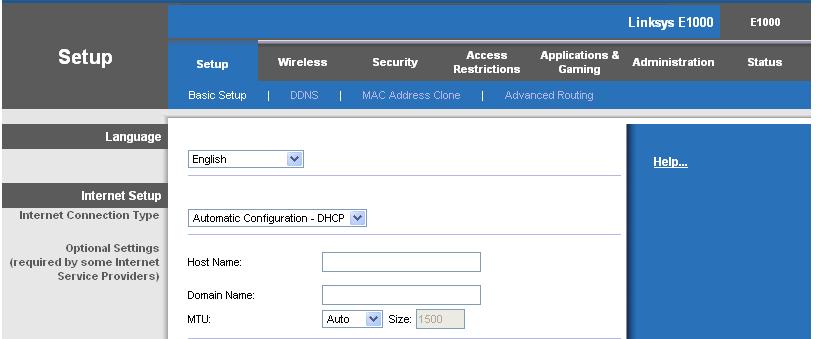 |
Linksys router setup page |
Step 5) Change the Internet connection settings according to your Internet service provider.
Step 6) Power cycle the entire network.
Step 7) Try to access Internet on the main computer. Once your main computer is able to go online, your wired connection is working. If you have any wired computer or device then connect them to the remaining Ethernet ports.
Step 8) Go to wireless network settings. Change the network name and create a security password. Do not share this password with outsiders.
Step 9) Connect your other wireless computers or devices to the new wireless network.
Remember, if you reset the router, you will need to reconfigure it.
Use Fix Home Network's Easy Network setup guide to configure your network easily.
Saturday, May 12, 2012
Limited or no connectivity
Error: Limited or No connectivity.
You get this error generally on Windows XP computer while connecting to the wireless network.
There are possible 2 reasons for this error message.
First, the wireless network key that you have entered is not correct. You may need to check the wireless settings of the router.
Open the setup page of the router and check the wireless settings. Make sure that you have the correct wireless network password. If your router is using WEP security mode then network key will be 10 or 26 digit hexa-decimal number and not the passphrase. The password is case sensitive.
How to check wireless network key:
Second reason, your computer is not getting IP address from the router. Make sure that DHCP server on your router is enabled and it is assigning IP addresses to all the computer. If other wireless computers are working and only one computer is getting error "Limited or no connectivity " then you can try assigning a static IP address to the computer.
You can also try to remove the wireless network profile from the computer and manually create a new profile.
If you have only one wireless computer in the network and if it is getting the error "Limited or no connectivity" then I will suggest you to create a new wireless network. Lower down the security level and see if that works. Open the setup page of the router. Change the wireless network name. Change the wireless channel and change the security key.
Also make sure that Wireless MAC filter is disabled.
Easy steps to connect to the wireless network.
You get this error generally on Windows XP computer while connecting to the wireless network.
There are possible 2 reasons for this error message.
First, the wireless network key that you have entered is not correct. You may need to check the wireless settings of the router.
Open the setup page of the router and check the wireless settings. Make sure that you have the correct wireless network password. If your router is using WEP security mode then network key will be 10 or 26 digit hexa-decimal number and not the passphrase. The password is case sensitive.
How to check wireless network key:
Second reason, your computer is not getting IP address from the router. Make sure that DHCP server on your router is enabled and it is assigning IP addresses to all the computer. If other wireless computers are working and only one computer is getting error "Limited or no connectivity " then you can try assigning a static IP address to the computer.
You can also try to remove the wireless network profile from the computer and manually create a new profile.
If you have only one wireless computer in the network and if it is getting the error "Limited or no connectivity" then I will suggest you to create a new wireless network. Lower down the security level and see if that works. Open the setup page of the router. Change the wireless network name. Change the wireless channel and change the security key.
Also make sure that Wireless MAC filter is disabled.
Easy steps to connect to the wireless network.
Thursday, May 10, 2012
Settings saved on this computer do not match
Error : "Settings saved on this computer do not match the requirements...."
What does this mean and why am I getting this error when I try to connect to the wireless network.
You get this error when there is a wireless network profile is already existing on your computer. This is the error on windows Vista and Windows 7 computer.
There may be many reasons behind this error.
Let's take an example.
You have a Linksys router at home and you are getting wireless network through this router. The name of your wireless network (SSID) is "Home" and there is a password on the network. Let's consider the password on your network is ABCDEFGH . Your wireless network profile is already saved on your computer with the SSID Home and password ABCDEFGH.
Now you go to your friends place. He has a Netgear router at home. And the wireless network name (SSID) of his router is also "Home". But the password for his network is IJKLMNOP.
You go to your friend's place and try to connect to the "Home" network. But the password saved on your computer for the "Home" network is different than your friend's network.
Now you will get the error " Settings saved on this computer do not match the requirements..."
How to get rid of the error message "Settings saved on this computer do not match the requirements..."?
It is really very simple.
First you will need to delete the wireless network profile on your computer.
Open Network and Sharing center.
Click on Manage Wireless Networks in the left panel.
You will see your Network name in the list.
Select your network from the list and click Remove.
Now try to connect to the wireless network again.
This time it will ask you for the network key. Enter the wireless network key and you are done.
Wednesday, May 9, 2012
How to change NAT type to open
Easy steps to change NAT type to open :
Let's understand what is NAT?
NAT - Network Address Translation - It is a networking concept used by network router to share one public IP address among multiple private addresses.
Let's consider you have 4 computers in the network. Each computer requies IP address in order to communicate with other computer and get Internet access.
You have Internet service provider and your service provider has given you one Internet modem. Now this Internet modem will assign only one public IP address. You can connect only one computer to the modem and get public IP address to get on the Internet.
Now if you connect modem to the router, then modem will assign IP address to the router. You can connect all the 4 computers to the router. Router will assign it's own private IP address to all the computers in order to communicate with them. In this way only one public IP address is used and 4 private IP addresses to get all the 4 computers on the Internet.
This is the basic function of all the routers.
In case of gaming devices they need to communicate with the public IP address. If you have connected router behind router then you will get strict NAT issue.
Some DSL Internet service provider's modem acts as a router. You connect your router to that router. In this case there are 2 routers in the network.
There are 3 types of NAT issues with the gaming devices.
Open NAT: This means the settings on the router are good and you are able to play the online games.
Moderate NAT: In this case you can talk to other players online who have open or moderate NAT.
Strict NAT: In this case you can not talk to the players who have moderate or strict NAT.
How to change NAT type to open?
In order to change NAT type to open, you will need to make some changes in router settings.
Change the MTU settings to 1365.
You will also need to open some ports on the router. The ports numbers are different for different gaming stations.
Disable firewall on the router. Do not disable SPI firewall.
If you are using DSL Internet service then make sure that your modem is in bridge or PPPoE mode.
How to change router settings to change NAT type to open.
Watch Youtube video:
Let's understand what is NAT?
NAT - Network Address Translation - It is a networking concept used by network router to share one public IP address among multiple private addresses.
Let's consider you have 4 computers in the network. Each computer requies IP address in order to communicate with other computer and get Internet access.
You have Internet service provider and your service provider has given you one Internet modem. Now this Internet modem will assign only one public IP address. You can connect only one computer to the modem and get public IP address to get on the Internet.
Now if you connect modem to the router, then modem will assign IP address to the router. You can connect all the 4 computers to the router. Router will assign it's own private IP address to all the computers in order to communicate with them. In this way only one public IP address is used and 4 private IP addresses to get all the 4 computers on the Internet.
This is the basic function of all the routers.
In case of gaming devices they need to communicate with the public IP address. If you have connected router behind router then you will get strict NAT issue.
Some DSL Internet service provider's modem acts as a router. You connect your router to that router. In this case there are 2 routers in the network.
There are 3 types of NAT issues with the gaming devices.
Open NAT: This means the settings on the router are good and you are able to play the online games.
Moderate NAT: In this case you can talk to other players online who have open or moderate NAT.
Strict NAT: In this case you can not talk to the players who have moderate or strict NAT.
How to change NAT type to open?
In order to change NAT type to open, you will need to make some changes in router settings.
Change the MTU settings to 1365.
You will also need to open some ports on the router. The ports numbers are different for different gaming stations.
Disable firewall on the router. Do not disable SPI firewall.
If you are using DSL Internet service then make sure that your modem is in bridge or PPPoE mode.
How to change router settings to change NAT type to open.
Watch Youtube video:
Subscribe to:
Posts (Atom)